Embed Health Insights
Introduction
IntelliProve provides multiple options for designing user experiences focused on health monitoring and visualising insights, making it easy for users to comprehend and interact with their health data.
- Our REST API
- Our Widgets
- The plug-and-play Health Dashboard
This guide explains how to design your post-scan user flow and display the results using each of the available integration options.
Flow
When a user performs a Face Scan, biomarkers are calculated and linked to this Face Scan. Each Face Scan therefore has a unique ID. The information from multiple Face Scans is used to calculate metrics, which are parameters that provide a deeper understanding and are based on long-term assessment. You will be able to use the user's ID and/or the Face Scan ID's to fetch Biomarkers and Metrics.
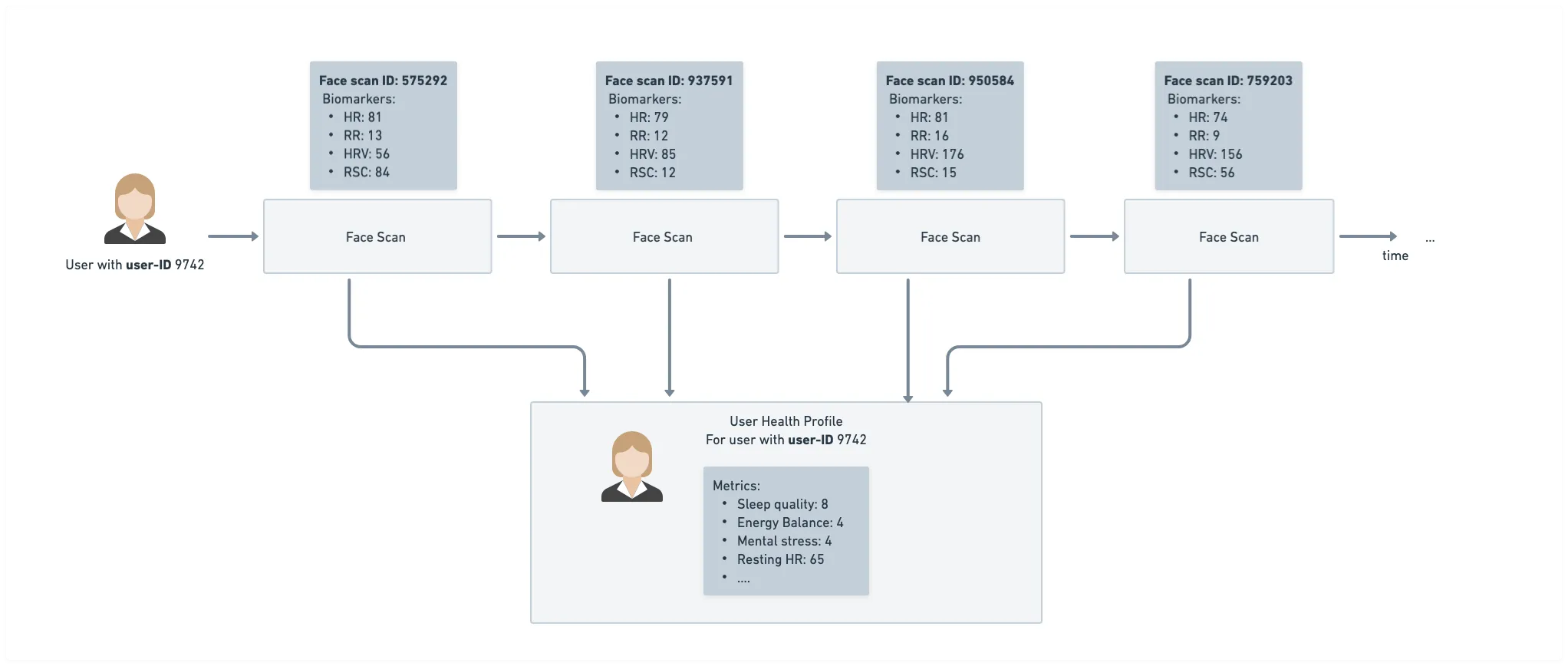
Prerequisites
Make sure to go through the first four steps of the Getting Started to understand how to register users and set up an initial integration of the plug-in in your website or app.
Proceeding after the Face Scan
When a user completes a Face Scan, your platform should respond appropriately. For example, you could transition to a new page displaying the scan results or your health dashboard.
To determine when to proceed, listen for messages sent by the plug-in. For instance, the dismiss message accompanied by the faceScanSuccessful message signals that the Face Scan was completed successfully.
Refer to our Message Events Documentation for more details about these events.
It's important to note that you might also receive a UserFinished event if the user ends the Face Scan without successfully completing it, for example, due to unfavorable conditions. We recommend accounting for this in your user journey design, for example by adapting the content accordingly.
Fetching and displaying health insights
IntelliProve provides various ways to use the Health Insights.
- Plug-and-play health dashboard
The plug-and-play Health Dashboard can simply be integrated using an iframe.
Steps
- Fetch the dashboard URL per user via our API: GET Health dashboard.
- Embed it using an <iframe> in your app, platform, or webview: Embed Plug-in. Take into account the guidelines regarding minimum dimensions of the frame!
- Configure user preferences like language and theming in our admin tool, or drop us an email with your preferences. Refer to UI Customization for more info.
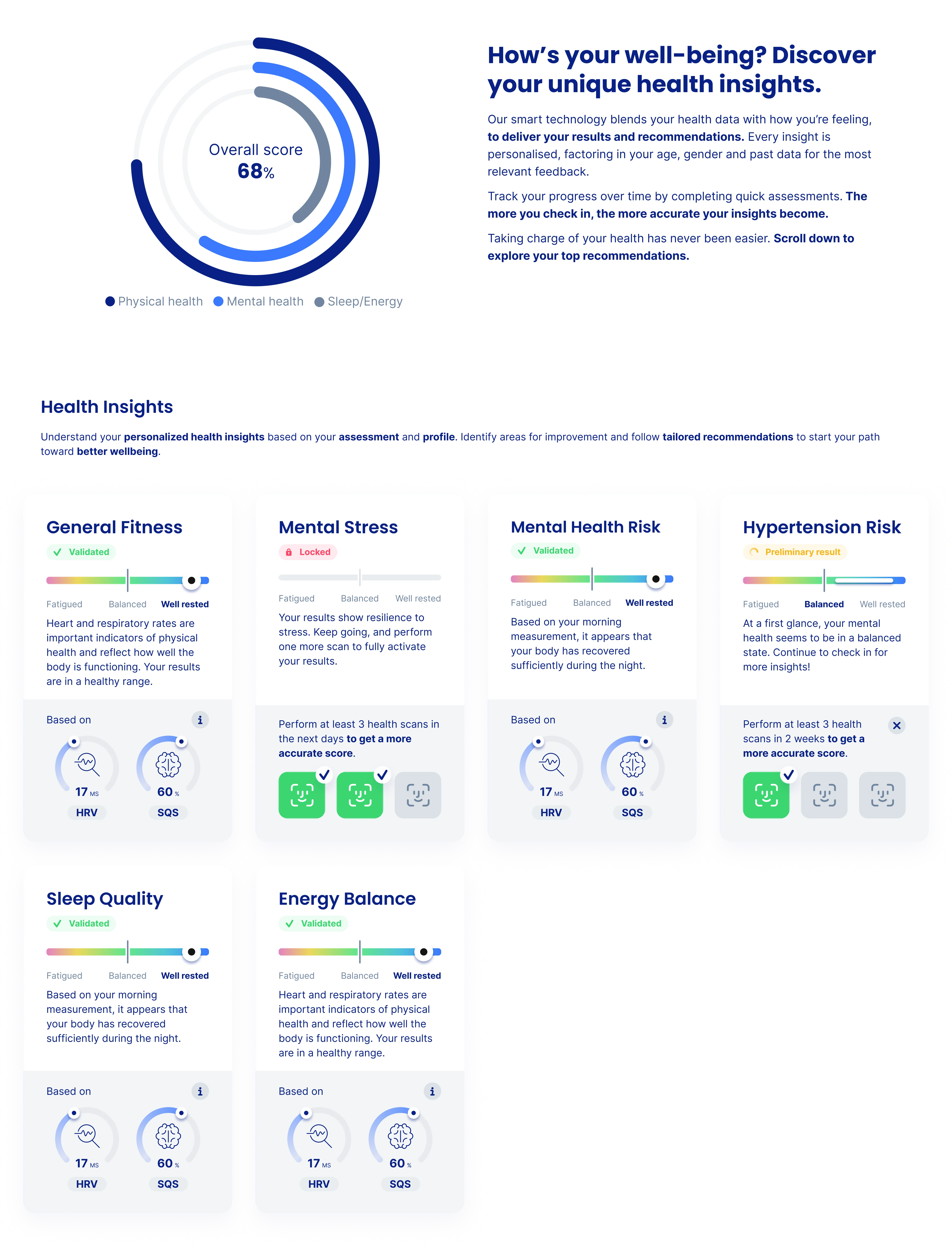
- Widgets
Biomarkers
The Biomarker widget displays the value of a specific biomarker, calculated during one of the Face Scans the user performed. You will need the Face Scan ID (see above on how to obtain it).
Metrics
The Metric widget can be used to display the value of a specific Metric.
- API
The API is ideal to fetch raw results, which you can use to link your own custom logic, create custom visualizations or use as input to send alerts or guide the user journey.
You can use the API to fetch both Biomarkers and Metrics.
Biomarkers
To fetch the Biomarkers from a specific Face Scan, you'll need the unique Face Scan ID or the user's ID.
How do I obtain the Face Scan ID?
You can obtain the Face Scan ID by listening to events generated by the Plug-in. The faceScanSuccessful event is generated when the Face Scan is completed successfully and signals that the results are ready. The event JSON message contains the Face Scan ID.
Our message events documentation contains detailed information about the different types of message events that are sent by the Plug-in. → Go to the message events documentation
Metrics
To fetch the user's health metrics, you can use your own external_user_id, used when you created the user. The 'User Health Profiles'-endpoint allow you to fetch the Metrics per Health Profile.