Message events
Introduction
To keep your app informed about the user's progress within the plug-in, we transmit data via message events at various stages. This page describes the different types of events, when they are sent, and their data format. The events are in JSON format and contain information about the Face Scan's progress.
Prerequisites
Make sure you've first gone through the Getting Started documentation, which explains the key concepts and the Face Scan flow.
To learn how to listen for these data messages :
- In web apps, refer to the Listening to message events in webapps page.
- In mobile apps, everything is detailed in the docs of the SDK you're using: Embed in mobile app
Overview
We distinguish the following events:
- StartNewMeasurement
- RecordingStarted
- RecordingStopped
- Dismiss -> notifies you when to dismiss the plug-in
- Camera -> lets you handle paths for customers with no camera
Summary of event occurrences
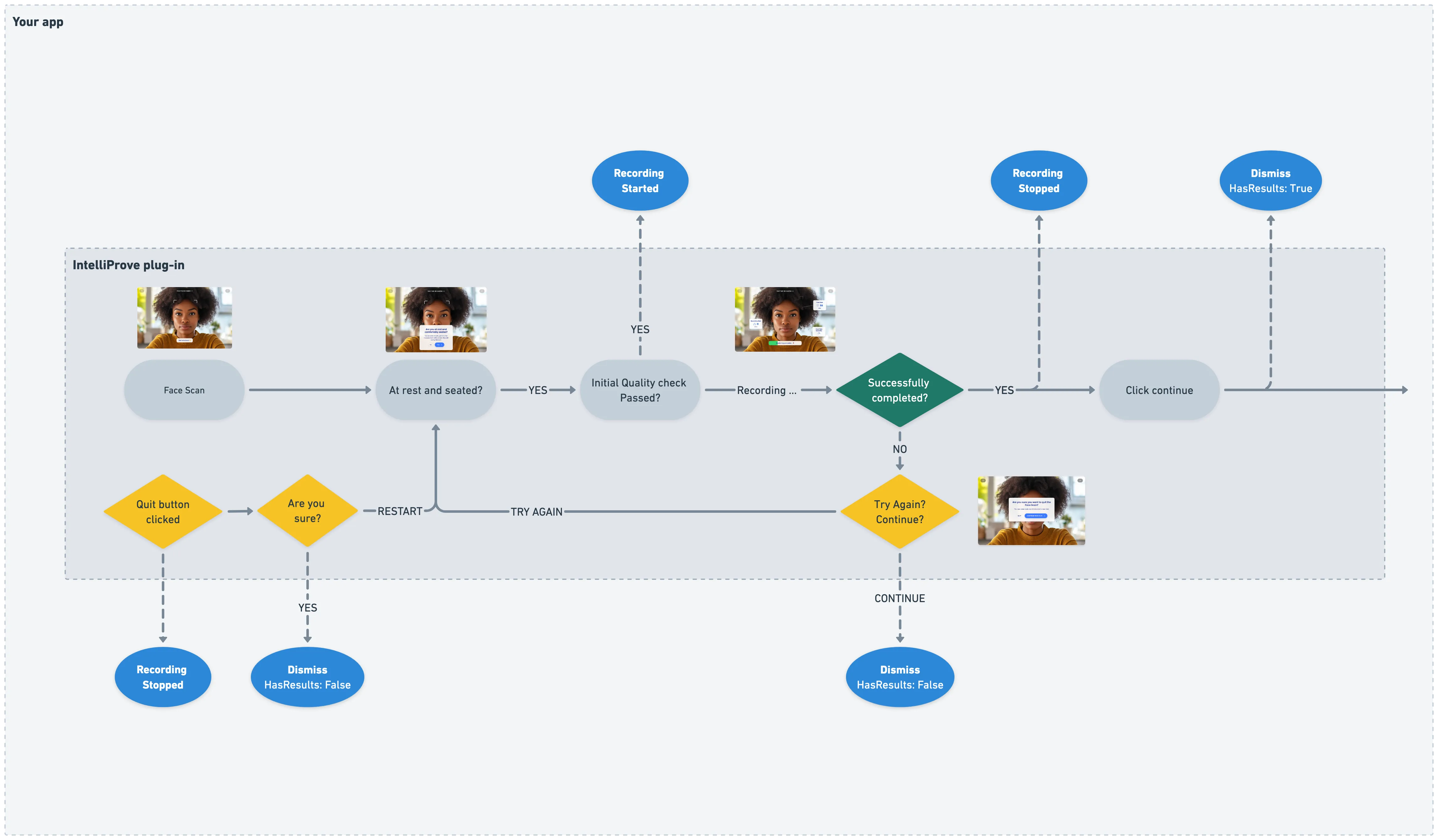
Upon reaching the recording screen, where the actual Face Scan takes place, users are welcomed by the smart assistant. After confirming they are at rest, the initial quality check kicks in. If the conditions are favourable and the check passes, the actual recording starts and a recordingStarted event is sent. The progress bar starts running, and once all results are in, the measurement succesfully concludes, prompting a recordingStopped event. A modal appears to inform the users about the completion of the scan. Clicking on 'continue' triggers the final dismiss event.
There might be instances where the quality deteriorates too much during the Face Scan, rendering an accurate assessment unfeasible. For instance, this could occur if the lighting abruptly dims. If this situation drags on for too long, users are presented with two choices: they can restart the Face Scan by selecting the ‘try again’ option, or they can opt to conclude the Face Scan without completing it successfully by clicking the ‘quit’ button. Choosing the 'try again' option brings them back to the start of the Face Scan process. If they select the 'quit' option, no Biomarkers can be calculated and a dismissevent is again sent
In short:
The dismiss event indicates the plug-in iframe may be closed (dismissed). This may be due to either:
- Succesful completion of the Face Scan – in which case the data.hasResults property will be True.
- Another reason, e.g. the user chose to quit – in which case the data.hasResults property will be False.
The event types are further explained in detail below.
Event types
The diagram below illustrates the different stages within the plug-in and the corresponding events triggered.
Any other message events not mentioned in this documentation, may be send for diagnostic or test purposes and should not be used.
Recording Started (informative)
Sent when the user clicks the record button and the timer starts.
Event Data
{
  "stage": "recordingStarted",
  "uuid": "380cae2a32ed4023be60a63c3ee97e95",
}- stage: "recordingStarted"
- uuid: Face Scan ID (unique ID of the Face Scan)
Recording Stopped (informative)
Sent when the recording stopped, i.e. the recording timer ends. Do not use this event to unmount the iframe!
Event Data
{
  "stage": "recordingStopped",
  "uuid": "380cae2a32ed4023be60a63c3ee97e95",
}- stage: "recordingStopped"
- uuid: Face Scan ID (unique ID of the Face Scan)
Dismiss
We will notify you with a "dismiss" event when the plug-in can be closed (dismissed). This is an overarching event, covering any situation where the plug-in should be closed. The data.hasResults property (boolean) can be used to distinguish whether the user finished the face scan successfully (hasResults: true), or if the face scan was aborted (hasResults: false).
Sent when the web plugin should be closed.
Event Data
{
  "stage": "dismiss",
  "uuid": "380cae2a32ed4023be60a63c3ee97e95",
  "data": {
     "hasResults": true
  }
}- stage: "dismiss"
- uuid: Face Scan ID (unique ID of the Face Scan)
- data: Additional event data
Camera
This event is sent whenever a camera related update is available. This post message has 4 possible options for its status value:
- prompting -> we asked the user for camera access and are waiting for a response
- available -> the user has a camera and has granted access
- denied -> the user has a camera but denied access
- no_camera -> the user has no camera available for use
These events allow you to provide the user with a different path if they have no camera or denied access to the camera.
Event Data
{
  "stage": "camera",
  "data": {
     "status": "available"
  }
}- stage: "camera"
- data: Additional event data
Timeout
If during a measurement, no activity or succesful quality check has been detected for two minutes, we will notify you with a timeout event. Additionally, a timeout modal will pop up for the user.
Event Data
{
  "stage": "timeOut"
}