Rest API
Introduction
The IntelliProve API is organised around REST. Our API has predictable resource-oriented URLs, accepts JSON-encoded request bodies, returns JSON-encoded responses, and uses standard HTTP response codes, authentication, and verbs.
https://engine.intelliprove.comExamples: POST https://engine.intelliprove.com/v2/users GET https://engine.intelliprove.com/v2/users
If you're new to this developer portal, we recommend starting with the product documentation to get familiar with the main product concepts and functionalities. To integrate the plug-in into your platform and get started performing Face Scans, follow our Getting started guide.
Authentication
The IntelliProve API supports both API keys and JWT Action Tokens to authenticate HTTP requests.
All API requests must be made over HTTPS. Calls made over plain HTTP will fail.
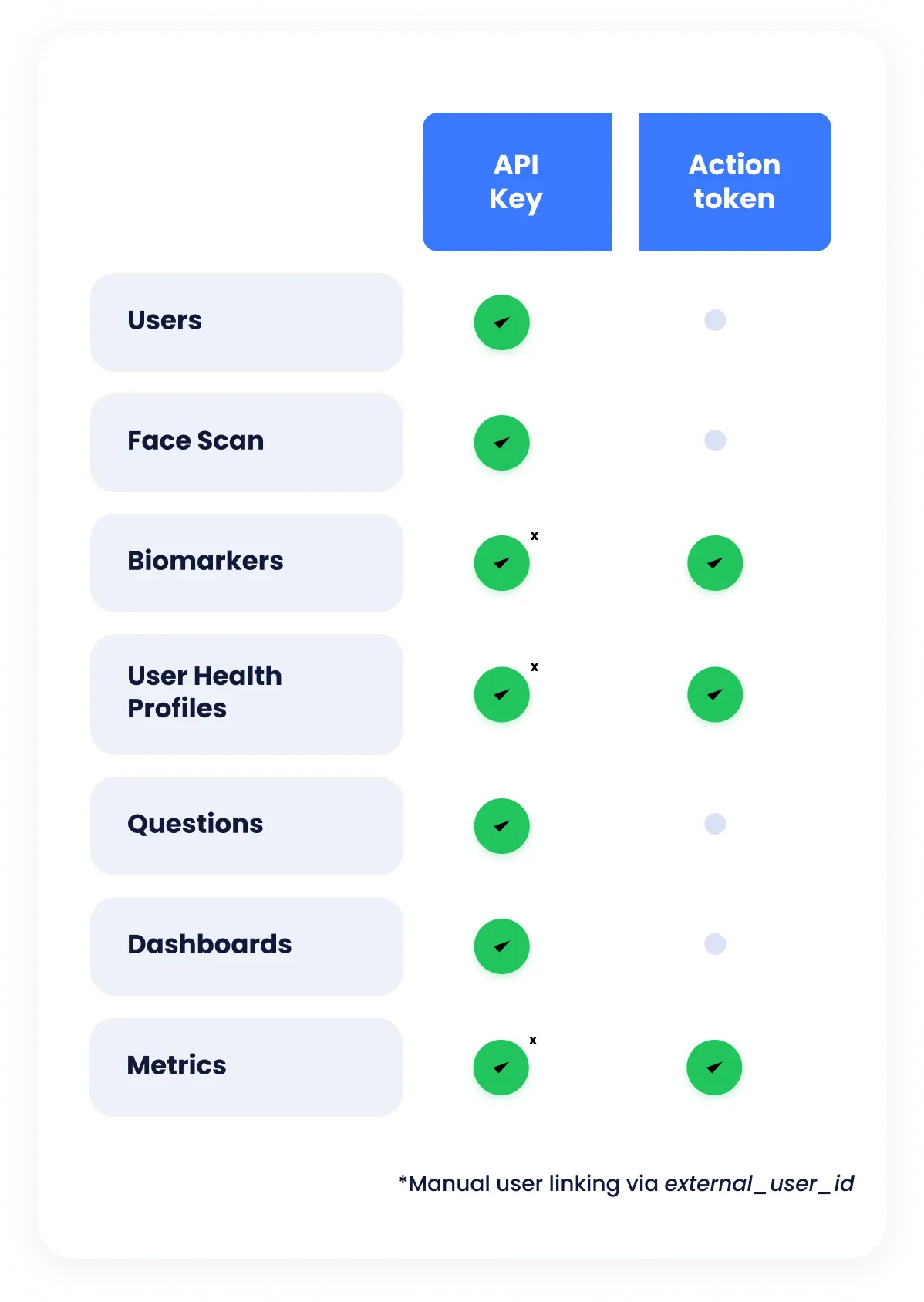
Authentication and permission roles are defined per resource. The API key provides full access, while an action token provides a temporary form of authentication only compatible with a selection of the API endpoints. Refer to the table below for an overview.
API Keys
API Keys are distributed when you sign up for a plan with IntelliProve. They can't be created manually.
Upon agreement, you'll receive at least two API keys. Development API keys, which can be used during development, are aliased with a "-DEV" suffix.
Alias | API Key (non-working examples) |
|---|---|
COMPANY_NAME-DEV | KUsWnp2vRGCfW8XPYJZeQdh-eT!n-Ms.UcyaETy3 |
COMPANY_NAME | fWeBpZ9CKaKb7pnk@vGtkQDjZFQ_U2g@GZu_Z74X |
API keys should be provided using Header-based API Key Authentication:
x-api-key: <your-api-key>Your API keys carry many privileges and have no expiry date, so be sure to keep them secure! Do not share your secret API keys in publicly accessible areas such as GitHub, client-side code, and so forth.
User linking when using API keys
Some API resources are user-specific, which means they are tied to a User. When accessing these resources with API Key authentication, you must explicitly specify which user the request should apply to. This is done by providing the External User ID in the request.
Specify the external_user_id using a query parameter:
"&external_user_id=<your-external-user-id>"Or, specify external_user_id using a body parameter:
{
   "user_external_id": "<your-external-user-id>",
   ...
}
How to provide the external_user_id depends on the type of endpoint. Each endpoint clearly specifies whether it should be provided as query parameter or body parameter.
Action Tokens
Action tokens can be created using the IntelliProve API with a valid API key. Use the Create user action token endpoint to do this.
Unlike API keys, User Action Tokens are always linked to a User, specified when creating the action token.
Provide the action token in your request using the Header-based Token Authentication:
Authorization: Token <action-token-for-user>When to use
Action tokens are specifically designed to be used in frontend code, as they have restricted access and automatically expire after a predefined timespan. However, they may also be used in backend code for certain usecases.
Action tokens can be used for selected API endpoints — an overview can be found in the table under Authentication.
When using an action token, the external_user_id should not be specified in the request anymore, since it is already embedded in the token.
When using action tokens, always created the token right before a User performs an action in your front-end – hence the name Action Token. This action token can be used while the user is performing the action (for example, consult the results of a Face Scan). If a user leaves a page and does another action, a new action token should be created.
Authentication Summary
| API key | Action token |
|---|---|---|
Scope | Full access to all data. | Limited access to user-specific data. |
Lifetime and creation | Created when you sign up for a plan. Does not expire. | Created by you using your API key. Expires after a few hours. Recommended to create and use within the scope of a user's action(s) on a page of your application. |
Usage | Used for M2M communication. | Used for performing action induced by the frontend. |
Link to user | Link manually via external_user_id. | Automatically linked, external_user_id should not be passed in the request. |
Localisation
Languages
Some endpoints support localized content. You can request a specific language by providing the language code in the relevant parameter
Language | Code |
|---|---|
Dutch | nl |
Danish | da |
English | en |
French | fr |
German | de |
Spanish | es |
Swedish | sv |
When no language is provided, the default language is used.
Unit systems
IntelliProve supports both the metric and imperial unit system for displaying data to users. All data is stored in the metric system but can be converted to the imperial unit system if desired. The preference can be set for your entire account as a customer, or per user. If no preference is set, all responses default to the metric unit system.
Order of unit system selection
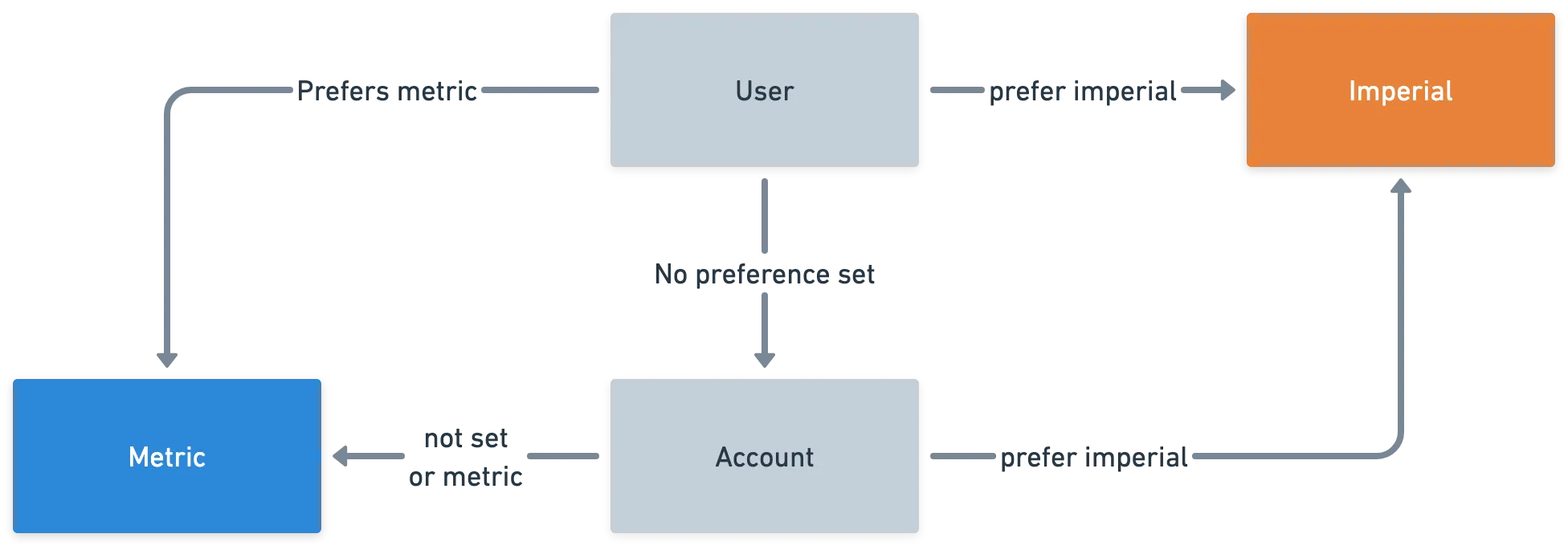
The preferred account-wide unit system setting can be communicated with your Customer Success Manager. A user's preferred unit system can be set using the Users endpoints.
Errors
In general, Status Codes in the 2xx range indicate success. Codes in the 4xx range indicate an error that failed given the information provided (e.g., a required parameter was omitted or the request format is invalid, etc.). Codes in the 5xx range indicate an error with IntelliProve’s servers.
Status Code | Description |
|---|---|
200 - OK | Everything worked as expected |
204 - No Content | The request is correct, but there is no content to be returned |
400 - Bad Request | The request was unacceptable |
401 - Not Authorized | No valid authentication provided |
403 - Forbidden | Invalid permissions to perform the request |
404 - Not Found | The request resource or endpoint does not exist |
422 - Unprocessable | One or more fields in the request body are invalid |
500, 502, 503 - Server Errors | Something went wrong on our end |
The 4xx and 5xx errors can be handled programmatically and include an error description that briefly explains the error reported.
{
    "detail": "User not found!"
}
An exception is made for the 422 errors, which give detailed information on which request parameter failed the validation.
{
    "detail": [
        {
            "loc": [
                "body",
                "data"
            ],
            "msg": "field required",
            "type": "value_error.missing"
        }
    ]
}
Users
The User Object
A User is a unique end-user accessing IntelliProve's services through your platform or app. Each User must be created once, enabling IntelliProve to track their Face Scans and build a personalized Health Profile.
When creating a user, you choose your own external_user_id (referred to as "External User ID"). Make sure it is an URL-encoded value.
Once created, you can reference Users by their external_user_id.
User object properties | Description |
|---|---|
user_id uuid | Unique, IntelliProve internal User ID, assigned to each end user. |
external_user_id nullable string | The unique ID you choose when creating an IntelliProve User. Stored in your own backend and used when requesting user data. Referred to as External User ID in the documentation. |
customer read-only string | Your company's name, which the end user is linked to. |
birth_date nullable date object | Date of birth in YYYY-MM-dd format |
sex nullable string enum | Sex at birth Values: "M", "F" |
language nullable string enum | Two-letter language code Values: "en", "nl", "fr", "da", "sv" |
preferred_unit_system nullable string enum | The preferred unit system for this user. Values: "metric", "imperial" |
Note on External User IDs We do not store the values you provide for the external_user_id directly. We only store a hashed version of the value you provided. This "security first"-approach is great for privacy and safety, but it does limit us from returning the value of external_user_id back to you. So make sure that you use a unique and persisted value for the external_user_id that you provide. The user's email address could be a good example of this.
The External User ID can be changed after creating a user. See: Update existing UserUpdate existing user
The external_user_id parameter is your own unique ID for the user.
The languageparameter can be used to set the user's preferred language. If it is, this language will be used as default language for that user, e.g. when displaying widgets or for a plug-in component, without having to explictly provide it there anymore.
You can obtain the IntelliProveuser_id via the the 'Get User Details' API endpoint, providing your own unique ID for the user via theexternal_user_id parameter.
Face Scan
To request a Face Scan URL, the user performing the scan must be created with IntelliProve. This only needs to be done once for each user and can be done with the Create New User API endpoint. To create the user, you must provide a unique reference for the user as a query parameter: external_user_id.
Note: The URL provided in the response may change over time. This applies not only to the action token, which is unique for each request, but also to the subdomain, which may update with new versions of the plug-in. To prevent issues, avoid hardcoding any part of the URL. Always use the full response URL as provided.
Additionally, ensure that your HTML security headers (e.g., Content Security Policy headers) allow all intelliprove.com subdomains. This is essential for the proper functioning of the IntelliProve plug-in and future updates.
Please note that the language, when specified here, overrides the default language set for the user, specified when creating the user.
Biomarkers
Metrics
Use this endpoint to get Health Metric data for users.
All score and confidence values are percentages between 0 and 100, accurate to 2 decimal places.
If a metric is null, like sleep_quality in the example above, no data is available for this user on this metric.
Wellbeing topics
Get scores related to the different wellbeing topics.
Important note on the scores:
- The score is a value between 0 and 100
- A score around 50% means average for that user, taking into account their age and sex.
- A score below 50% is considered below average, i.e. suboptimal.
- A score above 50% is considered above average, i.e. optimal.
Make sure to take this into account when visualizing the scores in your app. More information about the wellbeing topics: Understanding Wellbeing Topics. On the status label:
- The response also includes a status_label field, which provides a quick interpretation of the scores in the following order: [physical, mental, energy_sleep]. For example, a value of "GLN" means "optimal physical score, suboptimal mental health score, average energy & sleep score".
- The possible values are: Unknown = 'U', suboptimal = 'L', Normal/average = 'N'. Optimal = 'G'
Questions
The following endpoints are related to questions regarding user details such as age, weight or sex. These are used build an accurate baseline profile for each user and are essential for the calculation of metrics. Questions during the Face Scan allow the user to directly provide this information. However, if you already have this information, you can provide it to us via the API. The question will then not be asked in the Face Scan flow anymore. Refer to the Plug-in components documentation for more information.
This endpoint returns all availble lookup keys and is not customer or user specific.
{
    "value": 24,
    "lookup_key": "age",
    "timezone": "Europe/Brussels"
}
The value field always expects an integer value. For more information on the different lookup keys and possible values for each question, refer to the IntelliProve Admin Tool.
[
  {
     "value": 24,
     "lookup_key": "age",
     "timezone": "Europe/Brussels"
  },
  ...
]
For more information on the different lookup keys and possible values, refer to the IntelliProve Admin Tool.
Dashboards
These API endpoints provide easy ways to generate URLs to personalised user dashboards. Each generated URL includes a temporary, user-specific access token that grants limited-time access to the dashboard.
All the dashboard endpoints can only be accessed using the API Key.
{
    "external_user_id": "[email protected]",
    "language": "en",
    "disabled_sections": [ "recommendations", "todos", "biomarkers", "metrics"] # pick what you want to disable
}
Recommendations
These API endpoints allow you to get and manage your recommendations for your users.
The relevanceproperty is a number starting from 1. Relevance 1 is most relevant, 2 second, etc.