Handling slow internet connections
The Face Scan plug-in streams video frames to our backend during the whole scan. When the connection is too slow or unstable and we cannot guarantee accurate results, so the scan stops. This minimum connection quality cannot be bypassed. See Device Requirements.
What you can control is what happens next. This guide shows how to make sure a slow connection never blocks your user journey: the user is told what went wrong, lands on their latest results, and can try again later.
What the user sees in the plug-in
When the connection is too slow, the plug-in shows a modal that explains the problem and suggests switching networks or moving to a spot with better reception. The user has two options:
- Try again: restarts the scan, in case the connection has improved.
- Quit: ends the scan. The plug-in sends a dismiss message event to your app.
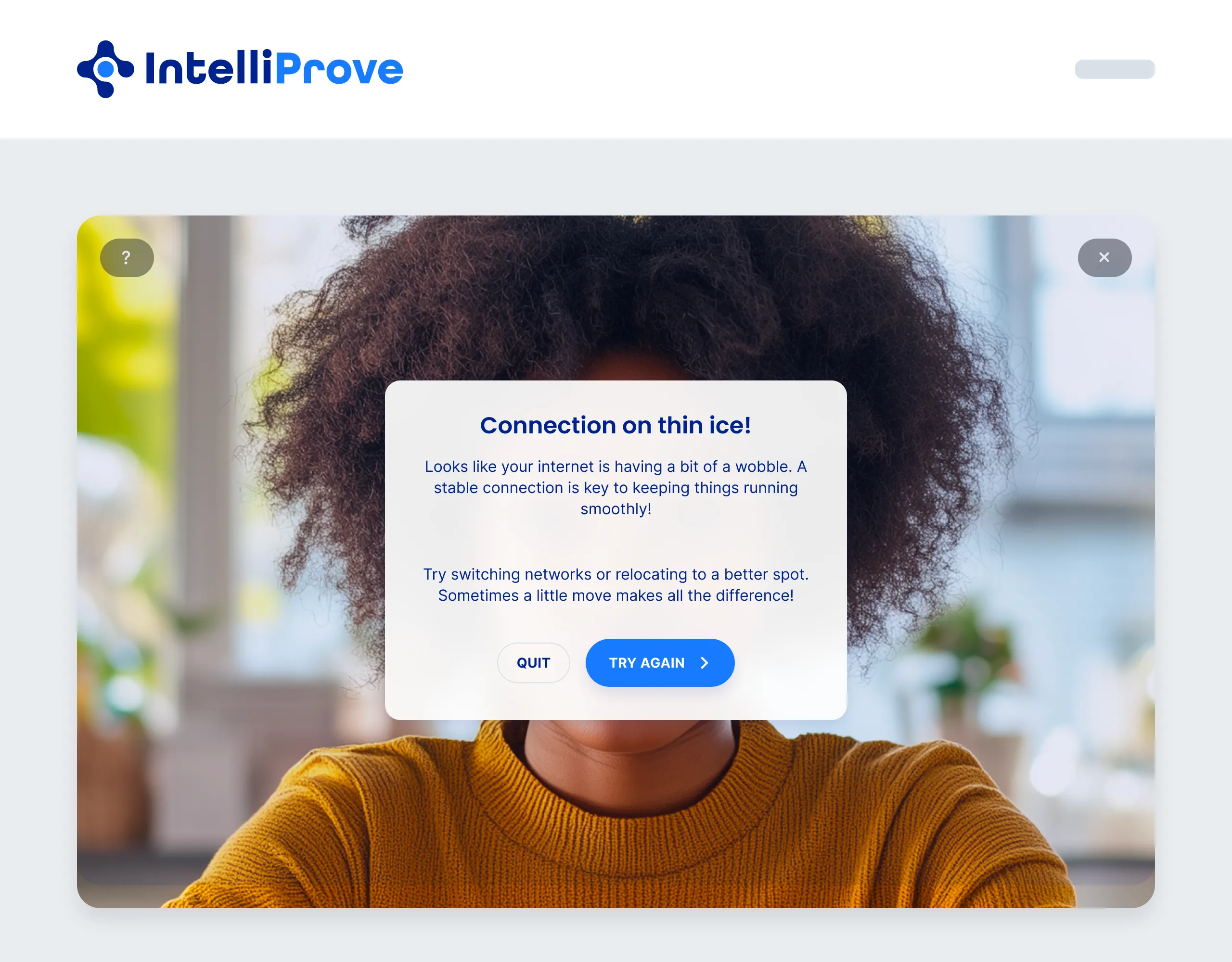
You do not need to build your own connection message: the plug-in already tells the user that their internet connection is the cause.
What your app receives
Quitting sends the same dismiss event as a completed scan. The only difference is the hasResults property:
Situation | Event | data.hasResults |
|---|---|---|
Scan completed | dismiss | true |
Scan stopped (slow connection, poor conditions, user quit) | dismiss | false |
This means you can use a single event to continue your flow, whatever the outcome of the scan.
{
  "stage": "dismiss",
  "data": {
    "hasResults": false
  }
}
The dismiss event does not state why the scan was stopped. A slow connection, poor lighting and a user who chose to quit all result in hasResults: false. Keep the message in your app general, for example "We couldn't complete your scan this time", and mention the connection as one of the possible causes.
Recommended flow
- Listen for the dismiss event. See Listening to message events in webapps or the guide for your Embed in mobile app. Our mobile SDKs close the web view automatically on dismiss.
- Close the plug-in and go to your results page, whatever the value of hasResults. Unmount or replace the iframe rather than changing its src.
- If hasResults is false , navigate to the results page Results from earlier scans stay available (see below).
- Offer a way to try again later, for example a button that opens a new Face Scan. Always request a new plug-in URL for a new scan.
Example (web app)
window.addEventListener("message", (event) => {
  if (!event.origin.includes("intelliprove.com")) return;
  if (event.data?.stage !== "dismiss") return;

  // Close the plug-in, whatever the outcome
  document.getElementById("intelliprove-iframe").remove();

  // Continue to the results page, flagging an incomplete scan
  const scanCompleted = event.data.data?.hasResults === true;
  showResultsPage({ scanCompleted });
});
Showing the latest results
How you show the previous results depends on your integration:
First-time users have no previous results. If the very first scan of a user is stopped, there is nothing to show yet. Show an empty state instead, for example: "Your first scan could not be completed. Try again when you have a stable internet connection."
Checklist
Your app listens for the dismiss event and closes the plug-in.
The user always continues to the next step, also when hasResults is false.
An incomplete scan shows a short, neutral message and the latest results.
First-time users without results see an empty state with a way to try again.
Starting a new scan requests a new plug-in URL.